Showing posts with label Tutorials. Show all posts

Sep 23, 2012

Twitter New Style


Twitter allows users to add banner.
 It is a nice touch.

As you can see here ( as example ) :


You can do this by following these simple steps :

1- Select Setting as you can see in this picture :

2- Click on Design :


3- Go to "Customize Your Own" section, Then Ckick on Change Header.


Notice : Recommended dimensions of 1200×600Maximum file size of 5MB

4-Then Pick up your Image. 
Adjust the image then click save.

Thats it.

Hope this help someone.

Good time.


Sep 13, 2012

Power Searching with Google - Registration is open


This course is from the source : Google.
Searching the web is a must skill.

So Register to this valuable course:

Another live session of Power Searching with Google begins on September 24!

Register now to complete the course alongside a community of global participants and when the course begins you'll receive:

Access to community discussion forum
The opportunity to put your new skills to test with mid and post class assessments
Support from Google course staff
An official Power Searching with Google certificate upon completion

Schedule

Pre-class assessment - available 2012-09-24
Class 1 - Introduction - available 2012-09-24
Class 2 - Interpreting results - available 2012-09-26
Class 3 - Advanced techniques - available 2012-09-28
Mid-class assessment available 2012-09-28, deadline 2012-10-10 11:59pm PT
Class 4 - Find facts faster - available 2012-10-01
Class 5 - Checking your facts - available 2012-10-03
Class 6 - Putting it all together - available 2012-10-05
Post-class assessment available 2012-10-05, deadline 2012-10-10 11:59pm PT

Do not miss this great chance.

The course link:
http://www.powersearchingwithgoogle.com/

Hoping to see there.

Good luck

Digital Literacy Tour From Google


Google again and always.
This course is valuable for families.

Descriptions :
Google support the education of families on how to stay safe online. That's why Google have teamed up with online safety organization iKeepSafe to develop curriculum that educators can use in the classroom to teach what it means to be a responsible online citizen.

The curriculum is designed to be interactive, discussion filled and allow students to learn through hands-on and scenario activities. On this site you'll find a resource booklet for both educators and students that can be downloaded in PDF form, presentations to accompany the lesson and animated videos to help frame the conversation.

Workshop 1: Detecting Lies & Staying True
Video: Detecting Lies and Staying True
Instructor's Guidebook
Student Handouts
Presentation to accompany lesson

Workshop 2: Playing and Staying Safe Online
Video: Playing and Staying Safe Online
Video: Staying Safe on YouTube
Instructor's Guidebook
Student Handouts
Presentation to accompany lesson

Workshop 3: Steering Clear of Cyber Tricks

Video: Steering Clear of Cyber Tricks
Instructor's Guidebook
Student Handouts
Presentation to accompany lesson

As you can see there are many workshops, videos, guidebooks and more

http://www.google.com/educators/digitalliteracy.html

Good time.

Adobe Captivate 6: Master Slides & Templates Free Seminar


Join Josh "Captian Captivate" Cavalier for this deep dive into how to use Captivate 6 Themes and building Captivate templates. He will cover the following:

What is a Captivate 6 Theme
The new Main Master Slide and Layouts
Object Styles
The Captivate 6 Template workflow
Adding your own brand
Using the Template
... and much more!

Date: Friday September 14, 2012
Time: 1:00 PM to 2:00 PM EDT

This is a free online seminar via Lodestone Live.

http://events.r20.constantcontact.com/register/event?llr=i7u6nsbab&oeidk=a07e6co8f0f35adb721

Sep 5, 2012

The Wonders of Adobe Captivate 6


Session Description:
Captivate 6 was released this summer and what a release it is! Joe Ganci, who has used Captivate for many years, will take you through a fun and revealing look at all the new and great features of Captivate 6. Included among the new features are:

1. Output to HTML and to Mobile Devices
2. Actors / Characters
3. Smart Shapes
4. Smart Learning Interactions
5. Themes
6. High Definition Screencasts
7. Pre-tests and Branch-Aware Branching
8. Partial and Negative Scoring
9. Remediation
10. Round-tripping with PowerPoint 2010
11. Optimized User Interface and Object Grouping
12. Audio Responses
13. Reflections Effect
14. Text Improvements

Speaker:
Joe Ganci, President, Dazzle Technologies Corp.

Joseph Ganci is President of Dazzle Technologies Corp., a custom training and learning company located in Ashburn, VA, right outside Washington. D.C.
Since 1983 he has been involved in every aspect of multimedia and learning development. Joe holds a degree in Computer Science, and is a published author, having written several books and articles about e-Learning.
Joe is widely considered a guru for his expertise in e-Learning development, and has taught classes and seminars at leading universities, in many government facilities, commercial firms, and educational institutions, and has spoken at many industry conferences. He is on a mission to improve to better the quality of e-Learning with practical approaches that work.

Date: Thursday, September 6, 2012
Time: 10:00AM Pacific /1:00PM Eastern(60 Minute Session)

http://www.trainingmagnetwork.com/welcome/joeganci_sept6

Good time.

Sep 2, 2012

Games and Simulations - Now in HTML5


The session will cover:
Why mLearning?
What are the challenges the developers face while creating mLearning courses?
Raptivity - A solution for your mLearning needs
Raptivity HTML5 Demo

Create Effective Mobile Learning with HTML5 Interactions
Raptivity now supports 90+ interactions in HTML5 format with the launch of MindPlay TurboPack, WordPlay TurboPack, Simulations TurboPack and Booster Pack1. With this you can create variety of interactions such as Strategy games, Game shows, Simulations, Crosswords and others for your mobile learning needs. With the vast library of HTML5 interactions, now enhance the learning experience across various devices.

join this webinar "Raptivity launches Games and Simulations - Now in HTML5". This session will showcase Raptivity's HTML5 features.

Wednesday, September 12, 2012 10:00 AM - 11:00 AM PDT


Become an eBOOK Publisher for eReaders, Desktop, Mobile and Tablet Devices


Technical documentation teams are now moving Policies and Procedures project content from the desktop to mobile devices and tablets. Adobe RoboHelp 10 supports the new ePub 3 (and ePub 2.0.1) as well as the Kindle Fire (KF8) formats. The publishing targets are eBook readers (such as Amazon Kindle, Barnes & Noble's, Nook, etc.) as well as tablets users (Apple iPad, Samsung Galaxy, BlackBerry Playbook, etc.) and even smartphones such as Motorola's Droid and Samsung's Galaxy S series.

In this eSeminar you will learn how to:

Prepare an existing RoboHelp project for generating to many devices using the new eBook Single Source Layout.
Optimize content maximum compatibility to adapt and accommodate a growing number of eBook readers and mobile devices.
Create an eBook Single Source Layout for ePub 3 and Kindle Book.
Enter Meta Information including publisher and copyright info as well as a Cover Image.
Validate the content in accordance with requirements of the Apple Store.

Presenters: This eSeminar is hosted by Adobe Certified RoboHelp Instructor John Daigle and his guest, Kevin Siegel. John teaches and consults Adobe RoboHelp and Adobe Captivate and is based in Evergreen, Colorado (www.showmethedemo.com). Kevin Siegel is founder of IconLogic and develops courseware for Adobe RoboHelp and many other Adobe products. He distributes his courseware using the ePUB format and is based near Baltimore, Maryland (www.iconlogic.com).

Wednesday, September 12, 2012
10:00 AM - 11:00 AM US/Pacific


Good time.

Aug 25, 2012

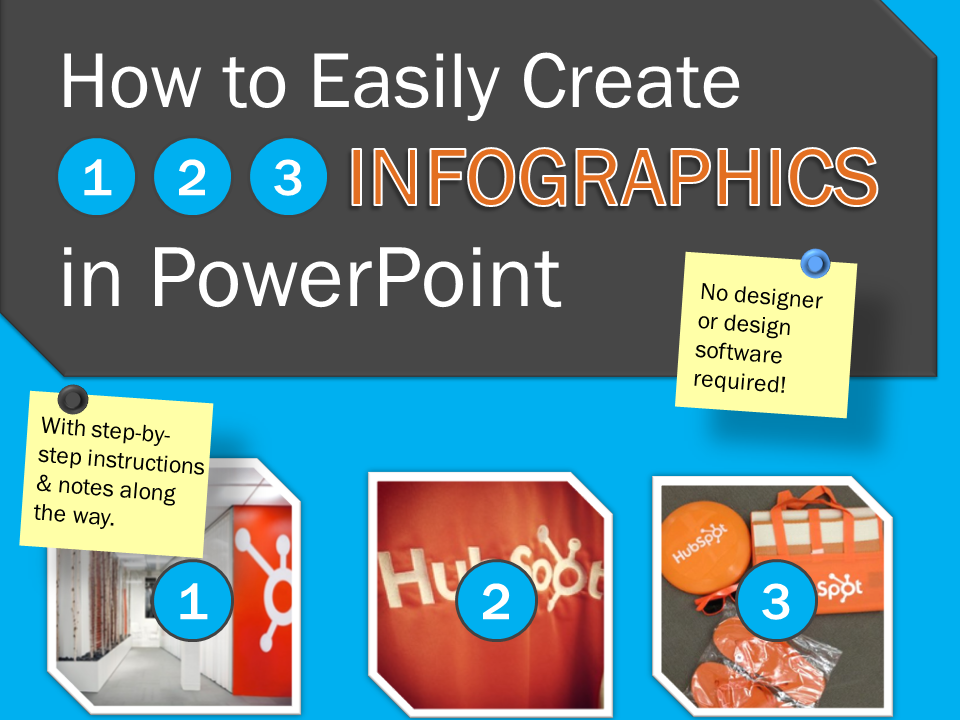
Free Template: How to Easily Create Infographics in PowerPoint


An infographic is a popular tool marketers use to capture their target audience's attention. They're also useful for lead generation efforts -- you can get website visitors to provide their contact information in exchange for downloading the infographic. The only question is: how do you actually make one?

With PowerPoint! We created three customizable infographic templates to help you start building these visual wonders.

This easy-to-use PowerPoint template comes with three types of infographics:

Step-by-Step Infographic
Informational Infographic
Data-Packed Infographic


Good Time.


Aug 20, 2012

Using SnagIt for Image and Video Capture -Free Course


This is a Free course From Alison.

This course is helpful when learning to capture an image on the screen, add rollovers to images, uploading images and much more. Learn how to edit an image successfully and add effects by studying Using SnagIt for Image and Video Capture at:

SnagIt is a piece of software that can be used for image and video capture from your PC or laptop. To use SnagIt just select an area of the screen, take a snapshot of it or record a video, then you can edit and add effects to it. You can also upload the image or video to the cloud. In this free online course about SnagIt you will be shown how to do both image and video screen capture and you will then learn what to do with the image and video files. You will be shown how to sort, export, share and embed these files. You will see why SnagIt is a great tool for recording screen activity to create software demonstrations and presentations. The more you use SnagIt, the more ways you’ll find to use it. This course will be of great interest to teachers and trainers who want to show people how to perform an action on a computer such as how to use a piece of software and it is also useful for capturing a view of something on the computer such as a part of a website for adding to demonstrations.

Using SnagIt for Image and Video Capture is originally from and published by Russell Stannard and has a duration of 1-2 Hours for the average learner. 


Aug 19, 2012

Free Courses and Webinars From nobledesktop


Many Free Courses and webinars from nobledesktop

Upcoming webinars : 

HTML EmailIn
Employment Strategies
What’s New in Photoshop CS6
PM How We Built Our Website
Creative Effects with IllustratorIn
How to Get Started in Web DesignIn
Dreamweaver and CSS (Cascading Style Sheets)
What’s New in Illustrator CS6
Responsive Web DesignIn
State of the Art Web Design: What Can I Do Now?
Intro to Adobe PhotoshopIn
Digital Publishing: eBooks, eMagazines & Apps
Roadmap to a Career in Web Design & Digital Media
Photoshop Illustration Techniques

and also you can watch Recordings of Online Seminars :

What's New in InDesign CS6
What's New in Photoshop CS6
How to Get Started in Web Design
Intro to Adobe Fireworks
Digital Publishing: eBooks, eMagazines & Apps
Intro to Adobe Photoshop CS5
Moving From Print to Web
Creative Effects with Illustrator CS5
Photoshop Old Photo Restoration
Creative Compositing with Photoshop CS5
Photoshop Digital Darkroom Techniques
Creative Effects with Illustrator CS5
Dreamweaver and CSS (w/ CS5)
Photoshop Illustration Techniques
Intro to Adobe InDesign CS5
How to Get Started in Web Design (with CS5)
Illustrator CS5 Upgrade—What’s New?
Photoshop CS5 Upgrade—What’s New?
InDesign CS5 Upgrade—What’s New?

http://www.nobledesktop.com/seminars/

Good site.

Aug 18, 2012

Free Course For Adobe Captivate


This Course Include :

Adobe Captivate Learning Series Overview
Adobe Captivate Creating a New Project
Adobe Captivate Project Planning and Resources
Adobe Captivate Importing and Editing Images
Adobe Captivate Working with the Vector Drawing Objects
Adobe Captivate Creating a Custom Color Theme with Adobe Kuler
Adobe Captivate Editing Images with Adobe Captivate, Photoshop, and Fireworks
Adobe Captivate Creating and Working with Master Slides
Adobe Captivate Managing Project Assets with the Library
Adobe Captivate Previewing Your Captivate Project
Adobe Captivate Adding and Styling Text Captions
Creating Styles with the Object Style Manager
Adding and Styling Buttons in Captivate
Adobe Captivate Working with Multiple Images and Buttons
Adobe Captivate Button Actions and Project Branching
Adobe Captivate Introduction to the Timeline
Adobe Captivate Object Management on the Timeline
Adobe Captivate Preparing Your Images for Timeline Animation
Adobe Captivate Adding Animation and Timeline Effects

By VHOT Training Inc.

http://www.udemy.com/adobe-captivate-5/

Jul 9, 2012

Building Stories using StoryLine


Using the book, "Story Impacts Learning and Performance" as a point of reference, Ray Jimenez will share how he uses engaging stories and Articulate StoryLine to author"What if I die today?" - Story Impacts eLearning Exercise. 

Specifically, Ray will provide you in advance, the source code to a basic self-reflection exercise, "What if I die today?" - a Story Impacts eLearning Exercise authored in StoryLine.You will be able to investigate the authoring design prior to learning  more about the approach during the actual webinar. 
Topics to cover:

*    Building basic game-like story elements using animation, objects, scenes and
     slides, timelines, layers and triggers
*    Using variables for multiple decision points 
*    Providing game-like feedback for progress tracking
*    Download and obtain the free source code for StoryLine scenario
     "What if I die today?" (Ray Jimenez, 2012) - ideal reference for your development
*    PRE-WEBINAR SOURCE CODE FREE DOWNLOAD

Speaker:   
Ray Jimenez, Ph.D.
Chief Learning Architect of Vignettes for Training, Inc.     
Ray Jimenez, Ph.D., spent 15 years with Coopers & Lybrand in the areas of management consulting and implementation of learning technology solutions. Ray has worked with American Bankers Association, Neiman Marcus, the U.S. Air Force, NASA, Blue Cross, Goodwill Industries, Pixar Studios, and the California Institute of Technology. 

Ray is the author of 3-Minute e-Learning, Scenario-Based Learning, and Do-It-Yourself eLearning, and Story Impacts Learning and Performance. Ray is the founder of http://www.trainingmagnetwork.com/ and http://www.try.storyimpacts.com/. He is the Chief Learning Architect for http://www.vignetteslearning.com/.  Webinar participants describe Ray as "fun," "engaging," "technically savvy," "provocative," "inspiring," and "has depth in eLearning experience and innovation solutions."

Date: Thursday, July12, 2012    
Time: 10:00AM Pacific / 1:00PM Eastern (60 Minute Session)

Register here :

Good Time.

Jul 1, 2012

Authoring Tools Tutorials


You cand find good tutorials for many authoring tools and other software such as :

•Articulate tutorials
•Brainshark tutorials
•Captivate tutorials
•iSpring tutorials
•Lectora tutorials
•Moodle tutorials
•Rapid Intake tutorials
•Snap tutorials
•Udutu tutorials

and Captivate 6 also
It is a good resource .

Jun 29, 2012

Branding eLearning Development with theme-based templates using Adobe Captivate


Join Anita Horsley, the community expert for Adobe Captivate with Vish and Dr. Pooja Jaisingh to learn how to Brand your eLearning courses with the use of Styles and Theme-based templates in new version of Adobe Captivate. During the session we will not only discuss how to modify the existing branding in the courses but would discuss how to create new themes for the use in other courses.

What Do You Need to Participate?               
Online live seminars are scheduled events simulcast over the web via Adobe Acrobat Connect Pro. You'll need a computer with a browser, Adobe Flash player, and Internet connection. Audio is broadcast through Voice-Over IP via your computer speakers. Access details will be provided once you register.

Let’s Explore the Advanced Quizzing Options with Adobe Captivate


Creating quizzes with Adobe Captivate is a simple task, but there are a lot of advanced options available to take your quizzes to the next level. Join Dr. Pooja Jaisingh and Vish to explore these advanced quizzing options available with Adobe Captivate.

What Do You Need to Participate?               
Online live seminars are scheduled events simulcast over the web via Adobe Acrobat Connect Pro. You'll need a computer with a browser, Adobe Flash player, and Internet connection. Audio is broadcast through Voice-Over IP via your computer speakers. Access details will be provided once you register

Thursday, July 26, 2012
8:00 AM - 9:00 AM US/Pacific

Jun 17, 2012

Free 10 New ebooks about Adobe CS6


Learn Photoshop CS6

Description:Use this collection of technical tutorials, from the Visual Design curriculum, to learn how to use Adobe Photoshop CS6. Technical guides include:

1. Overview of Adobe Photoshop CS6 workspace
2. How to create a new document
3. How to resize, rotate, and crop images
4. How to use layers in Photoshop
5. How to use selection tools
6. How to retouch photos
7. How to generate different file formats
8. How to correct color
9. How to combine images in Photoshop
10. How to use painting tools
11. How to use drawing tools
12. How to understand color management
13. How to add text to images
14. How to use filters
15. How to create layer comps
16. How to add a watermark to images
17. How to warp images
18. How to use gradient maps
19. How to use advanced color techniques
20. How to blend, feather, and smooth
21. How to use the Vanishing Point filter

Learn Illustrator CS6

Description:Use this collection of technical tutorials, from the Visual Design curriculum, to learn how to use Adobe Illustrator CS6. Technical guides include:

1. Overview of Adobe Illustrator CS6 workspace
2. How to create vector artwork
3. How to draw in Illustrator
4. How to draw in perspective with Illustrator
5. How to use symbols and patterns

Learn InDesign CS6

Description:Use this collection of technical tutorials, from the Visual Design curriculum, to learn how to use Adobe InDesign CS6. Technical guides include:

1. Overview of Adobe InDesign CS6 workspace
2. How to set up a document
3. How to use the ruler, grid, guides, and the Align panel
4. How to use text
5. How to prepare files for print
6. How to combine graphics frames and text frames
7. How to work with graphics frames
8. How to place images on a page
9. How to work with text frames
10. How to apply effects to text
11. How to import files
12. How to create interactive documents
13. How to use placeholder text
14. How to use character and paragraph styles
15. How to work with layers
16. How to wrap text around objects
17. How to add page numbers
18. How to create captions
19. How to import text from Microsoft Word
20. How to manage text flow between frames
21. How to reuse objects
22. How to transform objects
23. How to use document templates
24. How to use adaptive layouts
25. How to export for multiple screens
26. How to fill text with an image
27. How to use master pages
28. How to use object styles
29. How to use books

Learn Fireworks CS6

Description:Use this collection of technical tutorials, from the Digital Design curriculum, to learn how to use Adobe Fireworks CS6. Technical guides include:

1. Overview of Adobe Fireworks CS6 workspace
2. How to create a wireframe
3. How to create a design comp
4. How to prepare photographs
5. How to optimize images
6. How to create a prototype
7. How to create interactive navigation

Learn Dreamweaver CS6

Description:Use this collection of technical tutorials, from the Digital Design curriculum, to learn how to use Adobe Dreamweaver CS6. Technical guides include:

1. Overview of the Adobe Dreamweaver CS6 workspace
2. How to set up a local root folder and site structure
3. How to set document properties
4. How to use the Assets panel
5. How to manage files and links by using the FIles panel
6. The Dreamweaver Insert panel
7. How to deploy for multiple screens
8. How to create and edit a CSS rule
9. How to use CSS starter layouts
10. How to lay out a web page with CSS
11. How to use templates
12. How to work with external Cascading Style Sheets
13. How to troubleshoot Cascading Style Sheets
14. How to make websites accessible
15. How to use the Adobe Dreamweaver Widget Browser
16. How to check files in and out
17. How to create interactive navigation
18. How to add images
19. How to add rich media to a web page
20. How to add text
21. How to use CSS text styles
22. How to create lists
23. How to create links
24. How to create data tables
25. How to create forms
26. How to create image maps
27. How to preview and test a web project
28. How to check links
29. How to publish web files

Learn Flash Professional CS6

Description:Use this collection of technical tutorials, from the Digital Design curriculum, to learn how to use Adobe Flash Professional CS6. Technical guides include:

1. Overview of the Adobe Flash Professional CS6 workspace
2. Understanding Flask graphic files types
3. How to organize content
4. Symbols, instances, and the library
5. How to use guides and rulers
6. How to maintain consistency
7. How to make Flash content accessible
8. How to draw and create shapes
9. How to apply colors and gradients
10. How to create masks
11. How to create a button symbol
12. How to use transparent or invisible buttons
13. How to work with text
14. Understanding frames and keyframes
15. How to create animation
16. How to use a motion guide with a motion tween animation
17. How to ease tweens
18. How to create character animations
19. How to use sprite sheets
20. How to use filmmaking techniques
21. How to create transitions with motion tweens
22. How to create visual effects
23. How to import images
24. How to produce Flash video for use on the web
25. How to import sound
26. How to optimize Flash content
27. How to get started with ActionScript
28. ActionScript for basic gaming
29. How to test a Flash project
30. How to publish a Flash document
31. How to set up a mobile application
32. How to resize content for multiple screens
33. How to create an RSS feed
34. How to create a Google map
35. How to publish a mobile application

Learn Adobe Premiere Pro CS6

Description:Use this collection of technical tutorials, from the Digital Video curriculum, to learn how to use Adobe Premiere Pro CS6. Technical guides include:

1. Overview of the Adobe Premiere Pro CS6 workspace
2. How to import files
3. How to manage media in the Project panel
4. How to create a storyboard in the Project panel
5. How to trim clips in the Timeline panel
6. How to work with clips in the Timeline panel
7. How to create standard image, movie, and audio files
8. How to capture video
9. How to use editing tools in the Source Monitor
10. How to apply and adjust video transitions
11. How to adjust audio and apply crossfades
12. How to record a narration in the Audio Mixer
13. How to create TV news-style J- and L- cuts
14. How to edit in the Program Monitor
15. How to use Adobe Media Encoder CS6
16. How to use the Trim Monitor
17. Understanding the Titler
18. How to build text and objects in the Titler
19. How to work with alpha channel transparencies
20. How to use the Motion effect
21. How to add text effects
22. How to apply and adjust video effects
23. How to work with audio
24. How to change clip speed and direction
25. How to apply and adjust video keying effects
26. How to work with temporal and spatial keyframe interpolation
27. How to make text roll and crawl
28. How to use nested sequences
29. How to work with other motion effects and features

Learn After Effects CS6

Description:Use this collection of technical tutorials, from the Digital Video curriculum, to learn how to use Adobe After Effects CS6. Technical guides include:

1. Overview of Adobe After Effects CS6 workspace
2. How to animate text and create video effects
3. How to rotoscope in Adobe After Effects

Learn Audition CS6

Description:Use this collection of technical tutorials, from the Digital Video curriculum, to learn how to
use Adobe Audition CS6. Technical guides include:
1. Overview of Adobe Audition CS6 workspace
2. How to record narration
3. How to edit audio tracks
4. How to compose multiple track recordings
5. How to work with audio
6. How to apply Adobe Audition sound effects
7. How to use loops, music beds, and sound effects

Learn Encore CS6

Description:Use this collection of technical tutorials, from the Digital Video curriculum, to learn how to use Adobe Encore CS6. Technical guides include:

1. Overview of Adobe Encore CS6 workspace
2. How to author a single-menu DVD in Adobe Encore
3. How to use advanced authoring techniques in Encore
4. Creating a web DVD in Encore

Jun 16, 2012

Build Branched E-Learning Scenarios in Three Simple Steps


I’ve built hundreds of rapid elearning courses and I can tell you that building branched scenarios with your rapid elearning tools is not only possible, but it’s actually pretty easy to do.  I added some tutorials at the bottom of the page that shows you how to do so.

I like to keep things simple.  So I use what I call, the “3C” model.  Each scenario consists of a challenge, some choices, and then consequences of those choices.  That’s basically it.

You can complete here with example here :


Apr 26, 2012

Getting Started with Articulate Storyline


Building interactive elearning usually means you have to have programming skills or a team of programmers at hand. Today, that’s no longer the case. With Articulate Storyline you can experience the simplicity of working in a familiar interface and the power of creating more than click-and-read elearning…all at the speed of business.

This is the first of four sessions where you’ll learn to work with Articulate Storyline to build engaging and interactive courses. In today’s session we’ll review the core authoring process using the innovative object states, slide layers, and trigger features to quickly build interactive content.

In this session you’ll learn:

•    About the key Storyline features
•    How to insert content on the screen
•    Work with the built-in character sets
•    Quickly build interactive content using the states, layers and triggers
•    Customize the course player
•    Publish for Flash, HTML5 or the iPad

About Tom Kuhlmann
Tom Kuhlmann is as close as we get to a rock star in e-learning. He is the VP of Community at Articulate and author of widely popular "Rapid e-Learning Blog" with over 50,000 readers. While that may not be as many readers as Oprah has viewers, for e-learning, it's HUGE!

He's passionate about learning and technology and has over 15 years experience in the training industry where he's developed hundreds of hours of elearning and managed elearning projects at Capital One, Washington Mutual, and Weyerhaeuser. Tom has a Master's in Education Technology from Pepperdine, where he researched how to cultivate communities of practice through the development of personal expertise.

Tom's core focus is on helping people succeed and grow. He is known throughout the industry for his practical, no-nonsense approaches to e-learning, and tips for making PowerPoint do things its creators didn't envision.

Recoded Weinar
Date: Tuesday, April 3, 2012
Time: 10:00AM Pacific / 1:00PM Eastern - 60 Minute Session

Apr 6, 2012

Chromebook Classrooms‏ - Webinar


Chromebooks for Education gives students, teachers, and administrators a solution for fast, intuitive, and easy-to-manage computing. With a central web-based management console for all devices, automatic maintenance and upgrades, and an 8 second boot-up time, Chromebooks are at home in the classroom (and beyond). This webinar will discuss the benefits, technical requirements, and pricing for setting up a Chromebook classroom at your school. You'll hear from the Chromebooks team at Google and educators currently using Chromebooks with students.
You'll learn:
Overview of Chrome OS and Chromebooks
Benefits of Chromebooks in classrooms
Chromebook technical management capabilities
Specific school use case solutions
Pricing, support, and warranty details.

Speakers :
David Fringer
Executive Director of Information Systems,
Council Bluffs Community School District, Iowa  

Jaime Casap
Senior Education Evangelist
ChromeOS and Google Apps for Education, Google Enterprise 

Oct 21, 2011

Raptivity 6.6 launch webinar on 1st November 2011 - Webinar


Join us for the launch webinar of Raptivity v6.6 to experience the plethora of new features that would allow you to create interactions much faster and extend them beyond their normal look! Experience the flexibility of these packs that will empower you like never before! Get started with your mobile learning options with the new HTML5 Starter Pack with instructionally sound interactions.

This session will cover :
Demo of new HTML5 Starter Pack
Demo of much demanded usability features
How FlexiRaptivity packs change the way interactions can be built!
An interactive Q&A session to answer all your queries